Creating draft messages
Added in
eventcatalog@2.48.4Sometimes, you may want to create a message without immediately publishing it to production. Draft messages allow you to collaborate, gather feedback, or prepare for future changes—without exposing the message as "live" in your catalog
Common Use Cases
- Collaboration & Feedback
- Share a draft message with teammates to gather comments and suggestions before it goes live.
- Versioning with Breaking Changes
- Introduce a new version of a message that includes breaking changes. Keep it in draft mode until it’s fully reviewed and ready for deployment.
- Designing Event Lifecycles
- Use drafts to plan and iterate on message definitions before promoting them to production.
How to add a draft message
To mark an event as a draft, simply add the draft attribute to the frontmatter of the event file.
- Option 1: Add a
draftattribute to your message frontmatter. - Option 2: Add a
draftobject to your message frontmatter. (recommended)
/{events|commands|queries}/InventoryOutOfStock/index.mdx (example)
---
# Uses the default title and summary to mark things as draft in the UI
draft: true

# Or you can specify a title and summary for your draft
draft:
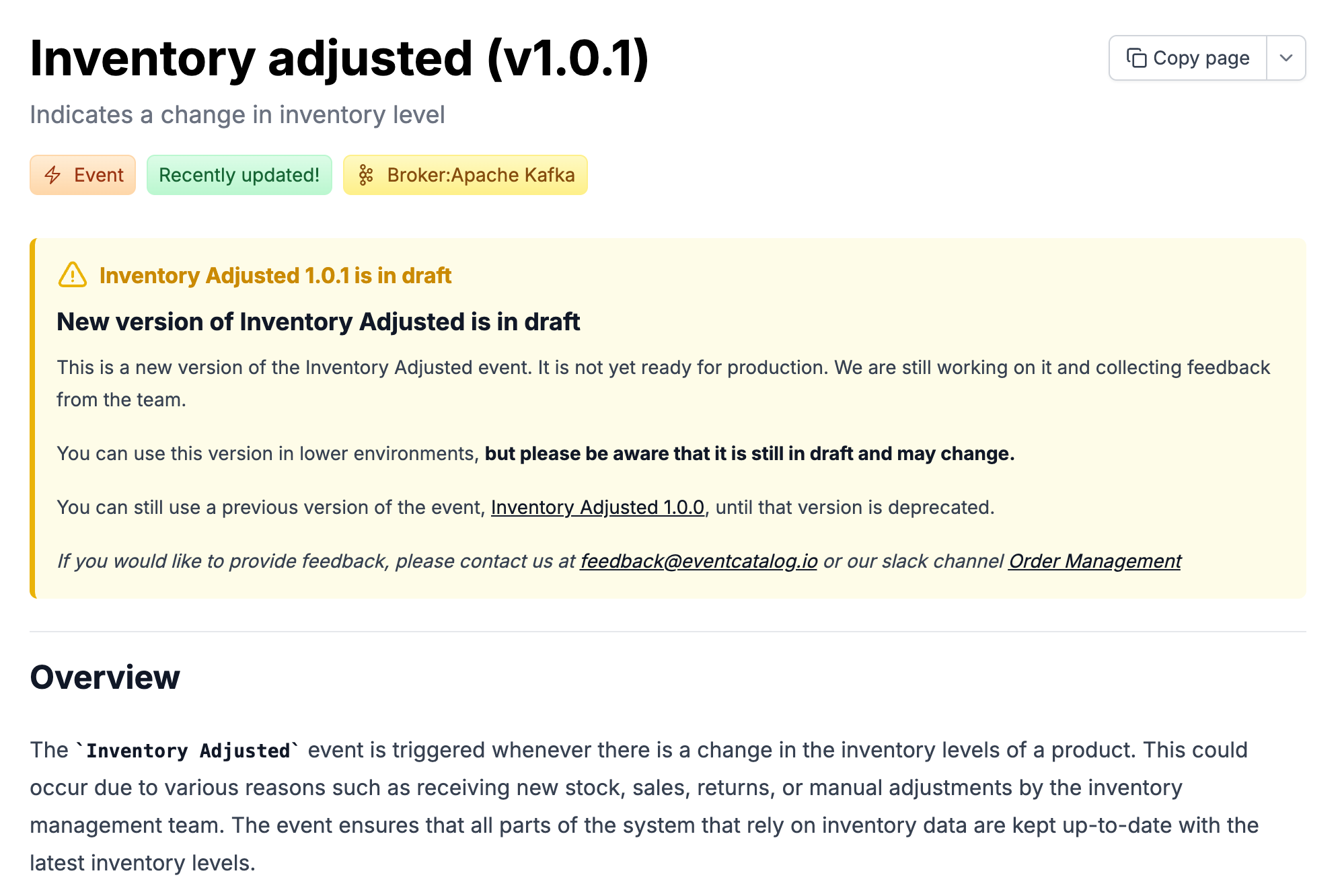
  title: "Inventory Adjusted 1.0.1 is in draft"
  # Supports markdown
  message: |
    ### New version of Inventory Adjusted is in draft

    This is a new version of the Inventory Adjusted event. It is not yet ready for production. We are still working on it and collecting feedback from the team.
    You can use this version in lower environments, **but please be aware that it is still in draft and may change.**
    You can still use a previous version of the event, [Inventory Adjusted 1.0.0](/docs/events/InventoryAdjusted/1.0.0), until that version is deprecated.
    _If you would like to provide feedback, please contact us at [feedback@eventcatalog.io](mailto:feedback@eventcatalog.io) or our slack channel [Order Management](https://join.slack.com/t/eventcatalog/shared_invite/zt-1q900000000000000000000000000000)_

---
When you mark a message as draft, it will show in the UI as a draft message.
Filtering for Draft Messages
If you want to quickly find draft messages, in your architecture, you can use the discover feature and filter for draft messages.
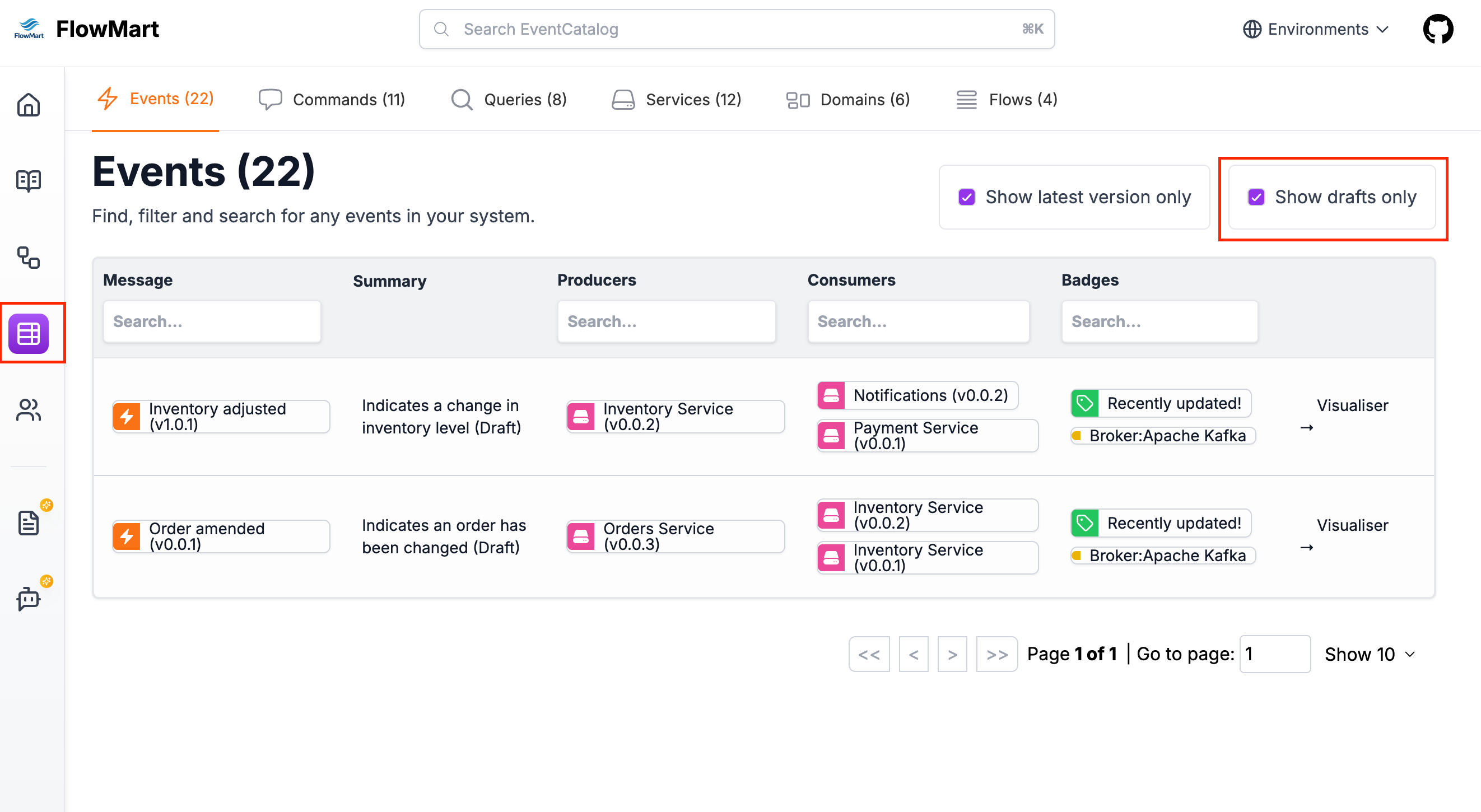
This will remove all resources, and only show the draft messages.