Adding schemas to messages
EventCatalog allows you to attach schemas to any message.
EventCatalog supports any schema format. (e.g Avro, Protobuf, JSON etc)
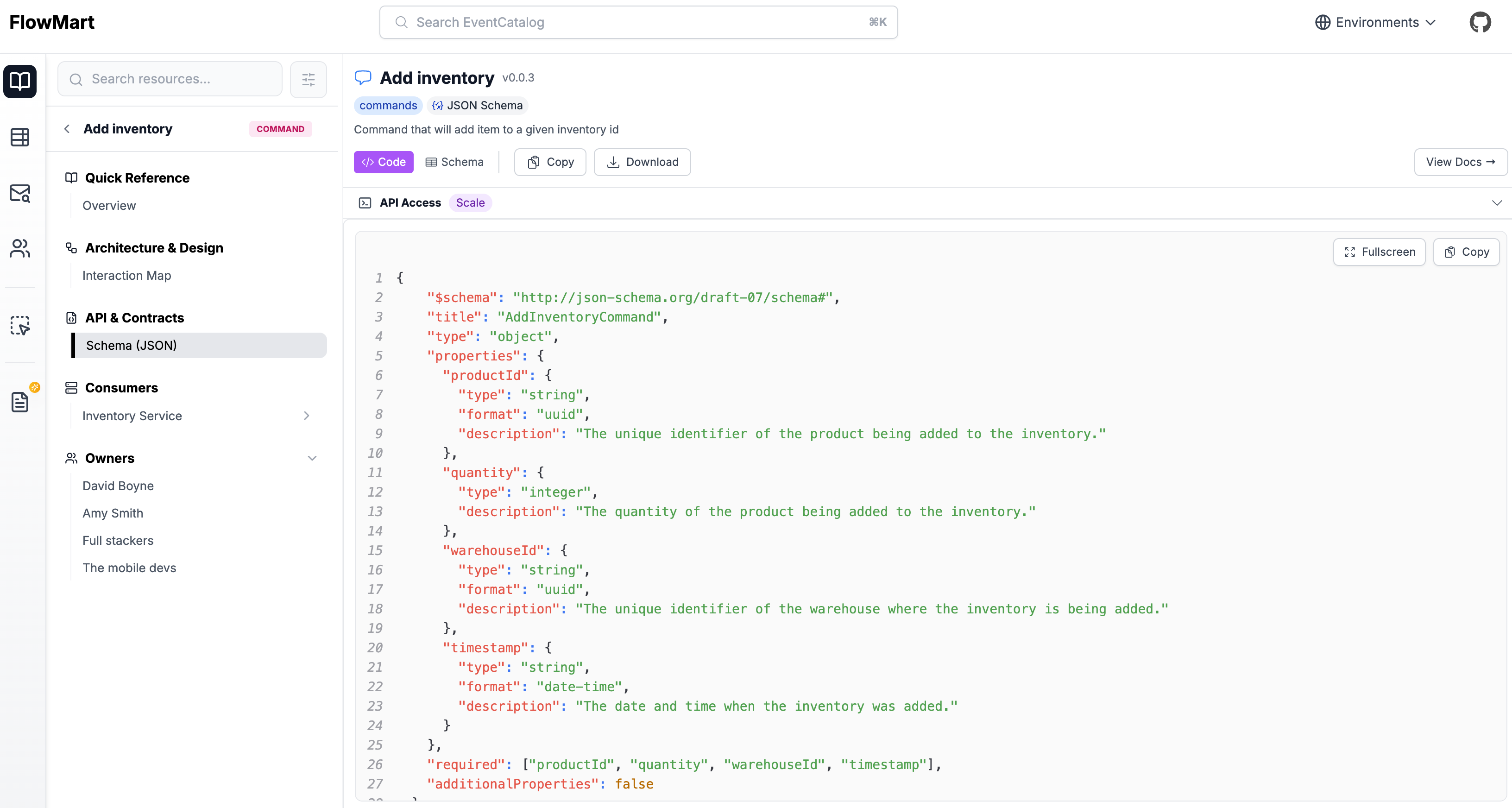
Schemas are very useful for users that want to understand the properties of your message and the context behind them.
Adding schemas to your commands
To add a schema to your message you need to add the schemaPath value in your message frontmatter and drop the schema file into your message folder.
/{events|commands|queries}/InventoryAdjusted/index.mdx (example)
---
id: InventoryAdjusted
version: 0.0.4
# relative path to the schema file
schemaPath: schema.avro
---
Folder structure:
/commands (or /events or /queries)
  /InventoryAdjusted
    index.mdx
    schema.avro
Schema Components
EventCatalog supports two components to render schemas into your message page.
<Schema/>- Renders the schema into your message page as a JSON code block<SchemaViewer/>- Renders the schema into your message page using a nice Schema component (JSON and Avro supported)
/{events|commands|queries}/InventoryAdjusted/index.mdx (example)
<!-- Renders the given schema into the page, as a JSON code block -->
<Schema file="schema.avro" />

<!-- Renders the given schema into the page using a nice Schema component -->
<SchemaViewer file="schema.avro" />